How to Set Up Phone Call Conversion Tracking in Google Ads the Right Way (2026)

| Key Takeaways: 1. Google Ads has three distinct call tracking types: calls from ads, calls from your website, and imported call conversions. Most local businesses need at least two of the three set up together. 2. The 60-second minimum call duration is the most important single setting in call conversion tracking. Anything shorter counts noise — wrong numbers, spam, accidental taps — as conversions and corrupts your Smart Bidding data. 3. Phone call conversions MUST be set as Primary, not Secondary. If they are set to Secondary, the algorithm never uses them to optimize bids. You are tracking calls but getting no benefit from that data. 4. Call reporting must be enabled at the account level in Settings before any call conversion tracking will work. Most people miss this. 5. Enhanced Conversions should be turned on. In 2026, with third-party cookies restricted across all major browsers, Enhanced Conversions recovers significant attribution that would otherwise be permanently lost. 6. Smart Bidding is only as intelligent as the conversion data you feed it. Bad call tracking data produces bad bidding decisions. Getting this right is the foundation of every Google Ads campaign for a phone-dependent business. |
Why Most Google Ads Accounts Track Phone Calls Wrong
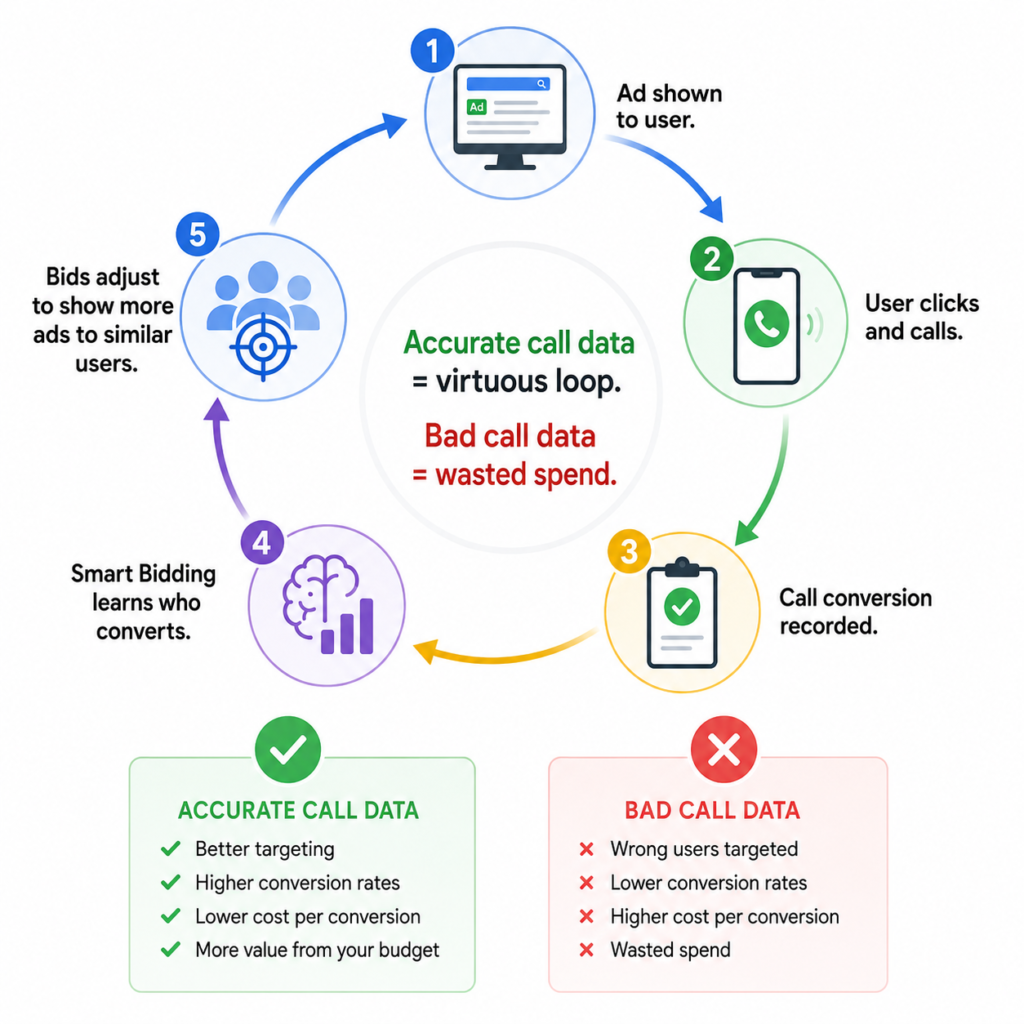
If your business relies on phone calls for leads, your Google Ads call tracking setup is not a nice-to-have. It is the foundation that every bidding decision your campaigns make is built on.
Get it wrong and Smart Bidding learns from garbage data, optimizes for the wrong actions, and produces campaigns that look profitable on the surface but are not generating real leads.
In 2026, with Google’s automated bidding running virtually every competitive campaign, the quality of your conversion data is the single most important factor in campaign performance. Not your keywords. Not your ad copy.
Not your landing pages. Your conversion data tells the algorithm what a successful outcome looks like. Feed it accurate call data and it gets better over time. Feed it inaccurate data and it gets confidently wrong over time.
When I audit Google Ads accounts for new clients at Growth Mentor Media, call tracking errors are in the majority of accounts we look at. The most common problems are the same six mistakes repeated across different businesses and industries.
This guide covers all of them and shows you the correct setup from scratch.
We build this inside GoHighLevel for local businesses.See how we work →
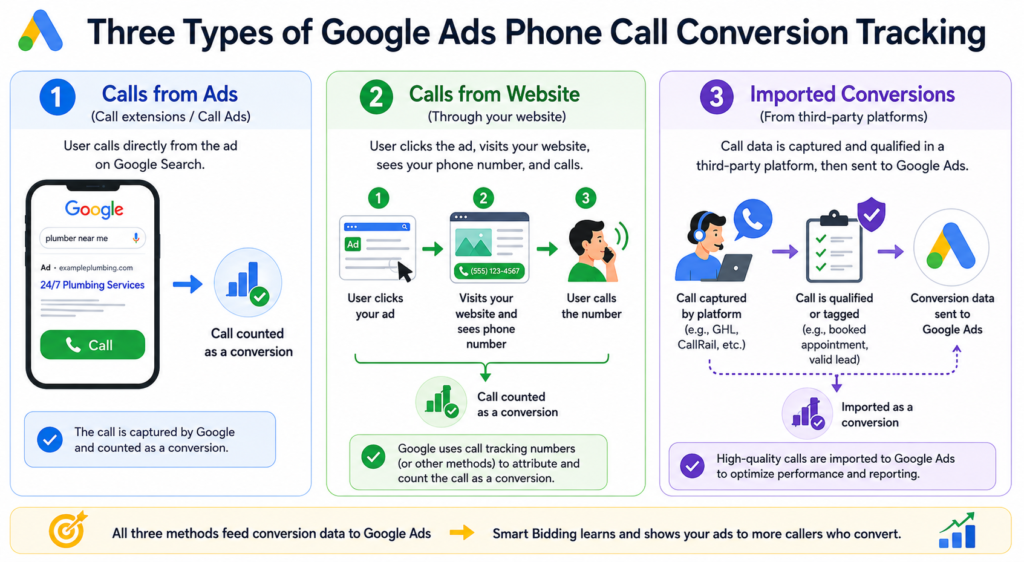
The 3 Types of Google Ads Phone Call Conversion Tracking
Before you set anything up, you need to understand that Google Ads offers three distinct methods for tracking phone call conversions. Each captures a different type of call from a different point in the customer journey. Most local service businesses should have at least two of these running simultaneously.
| Call Type | What It Tracks | Best For |
| Calls from ads | Calls made directly from a phone number shown inside your ad — call assets, call-only ads, and location assets with phone numbers. Requires no code on your site. | Mobile users who call directly from the search results page without visiting your website. High-intent, immediate callers. |
| Calls from website | Calls from users who clicked your ad, visited your landing page, and then called the number on the page. Uses a Google Forwarding Number (GFN) that dynamically replaces your business number for ad traffic. | Users who need to see your site before calling. Also captures desktop callers who cannot click-to-call directly from search. |
| Imported call conversions | Call data from a third-party tracking tool (CallRail, GoHighLevel, etc.) pushed back into Google Ads using the Google Click ID. Lets you apply quality filters before importing. | Businesses using dedicated call tracking platforms that want full control over which calls count as conversions in Google Ads. |
| Sarib’s recommendation for local service businesses: Set up Calls from ads AND Calls from website together. The first captures high-intent mobile callers who never visit your site. The second captures everyone else who visits first and then calls. Together they give you near-complete call attribution. Add imported conversions if you use GoHighLevel or CallRail and want to add quality filters before data enters Google Ads. |
Before You Build: Enable Call Reporting at the Account Level
This is the step most guides skip and most advertisers miss. Call reporting must be turned on at the account level before any call tracking will work. Without it, Google cannot use Google Forwarding Numbers and will not capture call data.
Here is how to check and enable it:
- In your Google Ads account, click the Settings gear icon (top right).
- Select Account Settings from the dropdown.
- Scroll down to the Call Reporting section.
- Toggle it to On if it is not already enabled.
- Save changes.
| Warning: if call reporting is disabled and you have call conversion actions set up, those actions will show zero conversions even if calls are coming in. Every call will go through to your business but Google will not record any of them. This is one of the most frustrating tracking failures to diagnose because everything in the campaign looks correctly configured — the error is hidden in account settings. |
Complete Step-by-Step Setup: All 3 Call Conversion Types
Setup A: Calls from Ads (Direct from Your Ad Creative)
| STEP 1 | Go to Goals — Conversions — Summary — Click the + button |
Log into Google Ads. In the left navigation, click Goals, then Conversions, then Summary. Click the blue plus button to create a new conversion action.

| STEP 2 | Select Phone Calls as the Conversion Type |
On the next screen, select Phone calls as your conversion category. You will then be asked to choose the source. For calls from ads, select Calls from ads using call and location assets.
| STEP 3 | Configure the Conversion Action Settings |
This screen is where most mistakes happen. Here is how to configure each field correctly:
| Setting | The Right Configuration and Why |
| Conversion name | Be specific: ‘Phone Call Lead — 60s’ or ‘Calls from Ads — Service Business’. Vague names like ‘Call’ make auditing hard later. |
| Goal category | Select Phone call lead. This tells Google the intent of the conversion — it helps with reporting and attribution. |
| Value | If every call has equal value, assign a fixed value (e.g., $50 per call to represent estimated lead value). If calls have variable value, leave it at ‘Don’t use a value’ and track value downstream. Never leave it blank if you can estimate — conversion value data helps Smart Bidding optimize more intelligently. |
| Count | Select Every for phone calls. Each call is a distinct lead opportunity. Unlike purchases where you might count One, every call represents a separate potential customer. |
| Click-through conversion window | Set to 30 days. If someone clicks your ad today and calls you two weeks later after visiting your site again, you want that call attributed back to the original ad click. |
| Engaged-view conversion window | Set to 3 days for calls. This applies to YouTube and Display. |
| Attribution model | Use Data-driven attribution (DDA). This assigns credit across the customer journey based on actual conversion paths, not just the last click. In 2026, DDA is significantly better than last-click for most businesses. |
| STEP 4 | Set Minimum Call Duration (The 60-Second Rule) |
For Calls from ads, you will see a Call length field. This is the most critical setting in the entire call tracking setup.
Set it to 60 seconds.
Here is why this number matters so much: calls under 60 seconds are almost never genuine leads. They include wrong numbers, spam callers, solicitors, people who called by accident on mobile, and people who heard your voicemail greeting and hung up.
If you count these as conversions, you are teaching Smart Bidding to find more people who generate these worthless short calls. Your campaign looks like it is converting well. Your actual lead quality is terrible.
Calls over 60 seconds almost always involve a real conversation. Even a short positive interaction — someone confirming your location, asking about availability, or getting a quick quote — typically runs past 60 seconds when the caller is genuinely interested.
| Why not 30 seconds? Why not 90 seconds? 30 seconds is too short. A spam caller or misdial can stay on the line for 30 seconds. 90 seconds excludes some legitimate quick-answer calls. 60 seconds is the standard across the Google Ads community because it consistently filters noise without excluding real leads. If your business is extremely high-intent and most real callers decide in under 45 seconds (rare), adjust down to 45. The right threshold is the shortest duration at which you are confident a real prospect is on the line. For most service businesses, 60 seconds is that number. |
| STEP 5 | Set the Conversion as Primary |
After saving the conversion action, find it in your Goals > Conversions > Summary list. Click on it to open the settings. Scroll to the Optimization section. Confirm that the conversion action is set to Primary and that Include in Conversions is toggled on.
If either of these is set incorrectly — Secondary or Include in Conversions off — the algorithm will track this conversion for reporting purposes only. It will appear in your All Conversions column but will NOT appear in your main Conversions column and will NOT influence Smart Bidding. Every Target CPA and Maximize Conversions bid strategy will ignore phone calls entirely. We set up and verify call conversion tracking as part of every Google Ads engagement. See our Google Ads service →
| Primary vs Secondary — the most misunderstood setting in Google Ads: Primary: Smart Bidding optimizes for this. Appears in Conversions column. Secondary: Tracking only. Algorithm ignores it for bidding. Appears in All Conversions column. Rule: phone call leads for a service business are PRIMARY. Page views, scroll depth, click-to-call taps (not the actual call), and video views are SECONDARY or not tracked at all. If you have page views set as Primary alongside your call conversions, Smart Bidding optimizes for page views — which is essentially every visitor — rather than the qualified callers you actually care about. |
Setup B: Calls from Website (Google Forwarding Number on Your Landing Page)
Follow Steps 1 and 2 above — Go to Goals > Conversions > Summary > + button > Phone calls — but this time select Calls to a phone number on your website as the source.
You will then be asked to enter:
- Your phone number (country + number in the correct format)
- A display number if different from your main business number
- The minimum call duration (again, 60 seconds)
After saving the conversion action, Google will give you a global site tag and a phone snippet. Both need to be installed on your website:
| Code Snippet | Where It Goes and What It Does |
| Global site tag (gtag.js) | Goes in the <head> section of every page on your site. This is the foundational Google tracking code. If you already use Google Analytics 4 or Google Tag Manager, you may already have this. Check before adding a duplicate. |
| Phone snippet | Goes on every page where your business phone number appears. This is the script that dynamically swaps your real number with the Google Forwarding Number for visitors who came from a Google ad. Visitors from organic search or direct traffic still see your real number. |
| Pro tip: use Google Tag Manager to install both snippets instead of editing code directly. GTM is faster to deploy, easier to manage, and makes debugging much simpler. If you are not using GTM already, setting it up before installing call tracking snippets is worth the 30 minutes of setup time. |

Setup C: Imported Call Conversions (From GoHighLevel or CallRail)
If you use GoHighLevel or CallRail for call tracking, you can import qualified call data directly into Google Ads as conversions. This gives you the most control over what counts — you can apply quality filters in your call tracking platform (minimum duration, answered calls only, calls tagged as qualified by your team) before any data enters Google Ads.
The setup:
- In Google Ads, go to Goals > Conversions > Summary > + button > Phone calls > Import.
- Select your import source — Google Analytics 4, Salesforce, or Other data sources depending on your setup.
- In GoHighLevel: go to Settings > Integrations > Google Ads and connect your account. Once connected, GHL can push call conversion events to Google Ads automatically when a call meets your criteria.
- In CallRail: go to Settings > Integrations > Google Ads. Select your account and map your call tracking numbers to the conversion action you created.
- In both platforms, confirm that the GCLID (Google Click ID) is being captured at the session level. The GCLID is what allows Google to tie the conversion back to the specific ad click that generated the call.
| Important on GCLID capture: the Google Click ID is passed in the URL as a parameter (?gclid=…) when someone clicks a Google ad. Your call tracking platform must capture and store this value when the visitor lands on your site. If it does not, imported conversions will show in Google Ads but will not be attributed to the correct ad or keyword — you get conversion volume but lose attribution. Check your call tracking platform’s settings to confirm GCLID capture is enabled. |
The 6 Mistakes That Silently Break Call Conversion Tracking
These errors do not throw error messages. Your campaigns keep running. Your reports show conversions. But your Smart Bidding is making decisions based on corrupted data, and your cost per real lead is quietly increasing.
| Mistake | What Actually Happens and How to Fix It |
| Call reporting disabled at account level | Every conversion action you create does nothing. Google cannot capture call data. Calls still come in but zero are recorded as conversions. Fix: Settings > Account Settings > Call Reporting > On. |
| Minimum call duration set too low (under 30 seconds) or at zero | Spam calls, misdials, accidental mobile taps, and hang-ups are counted as conversions. Smart Bidding learns to optimize for these. Your conversion volume looks high but leads are low quality. Fix: Set to 60 seconds. Check your Call Details report to validate the right threshold for your actual call patterns. |
| Call conversions set as Secondary instead of Primary | Call data is tracked but completely ignored by Smart Bidding. You appear to be tracking calls. The algorithm has no idea. Fix: Goals > Conversions > open the action > set to Primary > enable Include in Conversions. |
| Duplicate call conversion actions tracking the same calls twice | You have a Calls from Ads action AND a Calls from Website action both tracking the same call event. Conversions are double-counted. Smart Bidding sees twice the signal it should, over-bids, and wastes budget. Fix: audit your conversion actions. Make sure each call type has one and only one tracking action. Different call types (from ads vs from website) are fine to have separately — just do not duplicate them. |
| Using GA4-imported events as the primary call conversion | GA4 introduces a data lag of 6 to 18 hours on conversion data. Smart Bidding sees conversions hours after they happened and cannot adjust bids in real time. Fix: use native Google Ads call conversion actions (Calls from Ads or Calls from Website) as your primary call conversions. Use GA4 data for analysis and reporting, not as the primary bidding signal. |
| Not enabling Enhanced Conversions | In 2026, third-party cookies are severely restricted across Chrome, Firefox, and Safari. A significant percentage of conversions — including phone calls from website visitors — are not being attributed because Google cannot match the conversion back to the ad click. Enhanced Conversions sends hashed first-party data to recover these attributions. Fix: in Google Ads, go to Goals > Conversions > Settings and turn on Enhanced Conversions for web. Your developers or GTM setup needs to pass customer email at the point of conversion. |

How to Verify Your Call Tracking Is Working Correctly
After setting everything up, do not assume it is working. Verify it. Here is the fastest verification process:
- Test call from a real ad click: Click your own Google ad from an incognito browser on your mobile phone. This generates a real GCLID. On the landing page, check whether the phone number has changed to a Google Forwarding Number (it will be a different number from your real business number). Call that number from a different phone and stay on the line for over 60 seconds.
- Check the Call Details report: In Google Ads, go to Reports > Predefined reports > Other > Call details. Within a few hours, your test call should appear here with the correct duration, timestamp, and caller area code. If it does not appear, call reporting is likely disabled or the tracking snippet is not installed correctly.
- Check the Conversions Summary: Go to Goals > Conversions > Summary. Your call conversion action should show Recording conversions in the status column. If it shows No recent conversions, either the setup is wrong or not enough time has passed — wait 48 hours after a successful test call before troubleshooting further.
- Use Google Tag Assistant: Install the Google Tag Assistant Chrome extension. Visit your landing page and check that your gtag and phone snippet are firing correctly without errors.
If you want us to audit your current setup and tell you exactly where the gaps are, start with a free audit at Growth Mentor Media →
| Sarib’s quick account audit check: When auditing a new client account, the first three things I check for call tracking are: (1) Is call reporting on in Account Settings? (2) Are call conversions set as Primary? (3) Is the minimum duration at 60 seconds or above? These three checks alone identify the most common and highest-impact errors. I find at least one of these wrong in the majority of accounts I review. |
Frequently Asked Questions
How do I set up phone call conversion tracking in Google Ads?
Go to Goals, then Conversions, then Summary, and click the plus button. Select Phone calls. Choose your source — calls from ads, calls from website, or imported. Set minimum call duration to 60 seconds, set the conversion as Primary, and enable call reporting in Account Settings.
What is the difference between calls from ads and calls from website in Google Ads?
Calls from ads tracks calls made directly from your ad creative — no website visit required. Calls from website tracks calls from users who clicked your ad, visited your landing page, and then called the number on the page using a Google Forwarding Number. You typically want both for complete call attribution.
Why should I set 60 seconds as the minimum call duration?
Calls under 60 seconds are almost never real leads. Setting 60 seconds filters out spam, misdials, wrong numbers, and accidental mobile taps. Counting short calls as conversions teaches Smart Bidding to optimize for low-quality traffic. 60 seconds is the industry standard starting point.
What is a primary conversion action and why does it matter?
A primary conversion action is what Google’s Smart Bidding uses to optimize bids. If your call conversion is set to secondary, the algorithm ignores it completely for bidding — it only appears in reporting. Phone call leads should always be set as primary.
How do I enable call reporting in Google Ads?
Click the Settings gear icon in Google Ads, select Account Settings, and scroll to the Call Reporting section. Toggle it on. This must be done before any call conversion actions will work.
Can I import call conversions from GoHighLevel or CallRail?
Yes. Both platforms can push qualified call conversion data into Google Ads using the Google Click ID. Set up an Import-type phone call conversion action in Google Ads, connect your third-party platform, and ensure GCLID capture is enabled in the platform settings.
What are the most common mistakes in Google Ads call conversion tracking?
The six most common mistakes are: call reporting disabled, minimum duration too low, call conversions set as secondary, duplicate conversion actions, using GA4-imported events as primary conversions, and not enabling Enhanced Conversions.
Final Thoughts: Your Conversion Data Is Your Campaign’s Brain
In 2026, Smart Bidding runs on data. There is no longer a manual bidding lever you can pull to override the algorithm when it makes mistakes. The only way to correct its behaviour is to give it better data.
And for any business where phone calls are the primary lead action, getting call conversion tracking right is the most important technical task in your Google Ads account.
Set the 60-second threshold. Mark it as primary. Enable call reporting. Turn on Enhanced Conversions. Install both call tracking types — from ads and from website. And check your Call Details report weekly in the first month to make sure the data looks right.
Every dollar you spend on Google Ads gets smarter when your conversion data is clean. Every dollar gets faster, when it is based on noise.
At Growth Mentor Media, call tracking verification and setup is part of every Google Ads onboarding. If you want to know whether your current call tracking is accurate or quietly broken, a free account audit is a good place to start.
| About the Author Sarib Khan Kakerzai is the co-founder of Growth Mentor Media, a performance marketing agency running Google Ads for local service businesses, ecommerce brands, and lead gen clients across the US, UK, UAE, and Pakistan. With 7+ years in paid media, Sarib has audited hundreds of Google Ads accounts and rebuilt call tracking setups for businesses across HVAC, legal, dental, moving, and home services verticals. Growth Mentor Media is based in Kuala Lumpur, Malaysia. |
